 AI Notetaker
Local notes, with optional web access.
One desktop app records browser and desktop meetings on macOS, Windows, and Linux, and makes your notes with your own AI provider keys. An optional Chrome extension can record a browser tab. No bot joins the call.
Local setup is the default
Use your provider API keys
- choose and pay your transcription and summary providers directly
- keep provider keys in your operating-system credential store
- record browser or desktop calls without an AI Notetaker account
- in desktop, save raw audio and notes on this device first
Sync notes only if you want
- sign in from the desktop app and choose a Pro or Team plan
- finished desktop notes sync to the web app and your other devices
- workspace notes are copied into the desktop library
- raw audio and provider keys stay on this device
Sync (Pro or Team) sends finished desktop notes to the workspace and copies workspace notes into the desktop library. Web edits refresh workspace copies on the next sync. Desktop-origin notes are protected from automatic overwrites; deletions and settings do not sync back. Browser extension recordings still need archive export and import.
Sync your notes (optional, subscription)
Cloud sync is part of the Pro and Team plans. It sends finished desktop notes to your workspace so you can read them on the web and on your other devices. Local recording stays account-free.
Create your account
A free account lets you sign in and manage your devices. Sync starts when the workspace has a Pro or Team plan.
Choose a plan
Pick Pro for your own devices or Team to share a workspace.
Sign in from the desktop app
Open Settings → Account & sync and sign in, or use the one-time code from your account page. Finished desktop notes then sync; raw audio and provider keys stay local.
Set up with API keys
Free and account-free. You pay your AI providers directly.
Install the desktop app
Preview installers are available on Downloads. They are unsigned, and platform capture checks are still in progress. Local recording does not require an AI Notetaker account.
Pick providers and paste keys
In desktop Settings, choose transcription and summary providers, paste each key, and test them before saving. Supported providers include Deepgram, Groq, Anthropic, Gemini and DeepSeek.
Record
Confirm recording consent and start. Keys stay in protected storage on your device and go only to the providers you chose. Raw audio and notes are saved locally first.
Choose how to capture your meeting.
Meetings in Chrome
Use the extension for a meeting playing in the current Chrome tab, including web versions of Meet, Zoom, Teams, Slack, and Discord.
- Join the meeting in Chrome. Use its floating recording control, the extension toolbar popup, or the recording shortcut.
- Confirm the recording notice. The extension saves tab and microphone audio separately in Chrome.
- Export the archive and import it in the desktop app to transcribe the audio and create notes.
Browser or desktop meeting
Use AI Notetaker for macOS, Windows, or Linux for direct system-audio capture.
- Check the detected microphone and system audio in the app. Change your OS input or output if needed.
- Grant OS audio permissions and run the audio check.
- Start and stop from the desktop app, then review notes locally.
Always tell participants you are recording and get the consent that your local law and workplace policy require. AI Notetaker asks you to acknowledge this before every recording. It is not legal advice.
Explain it to your team
Free vector infographics you can download, print or link to. Example content only.
How AI Notetaker works
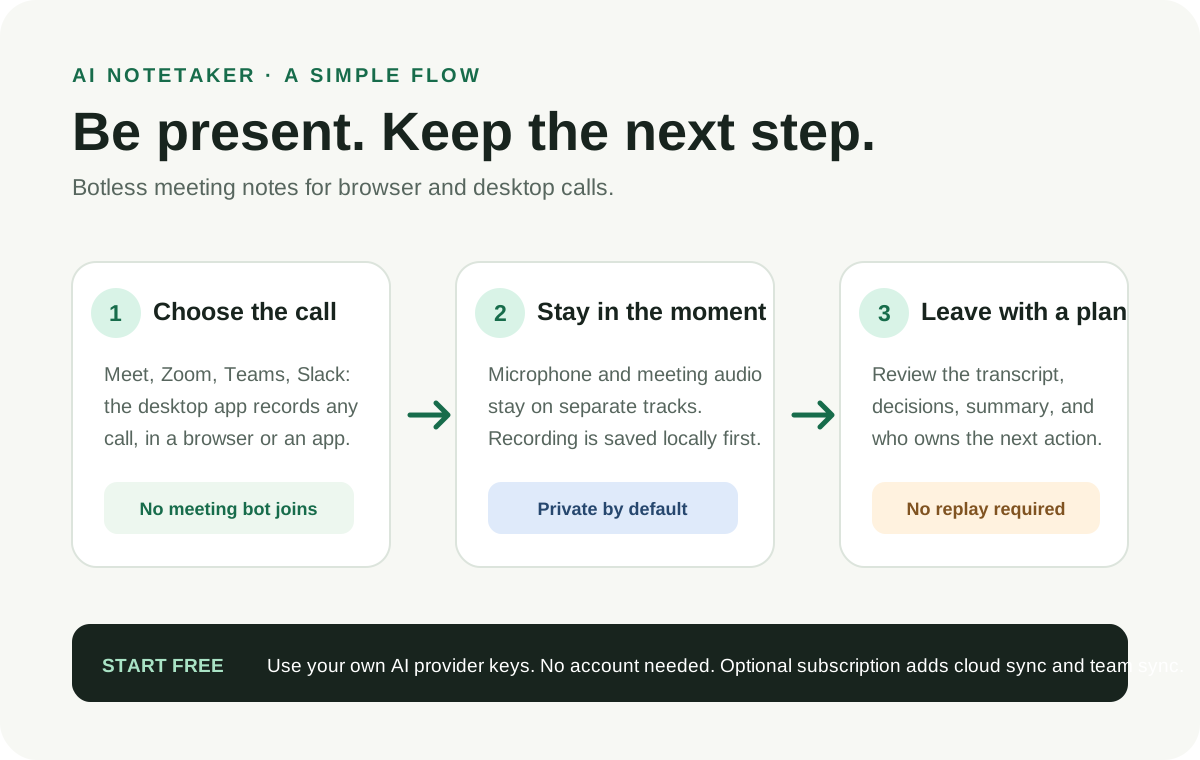
Download the SVG. Three steps from choosing your call to reviewing what happens next.
Example meeting workflows
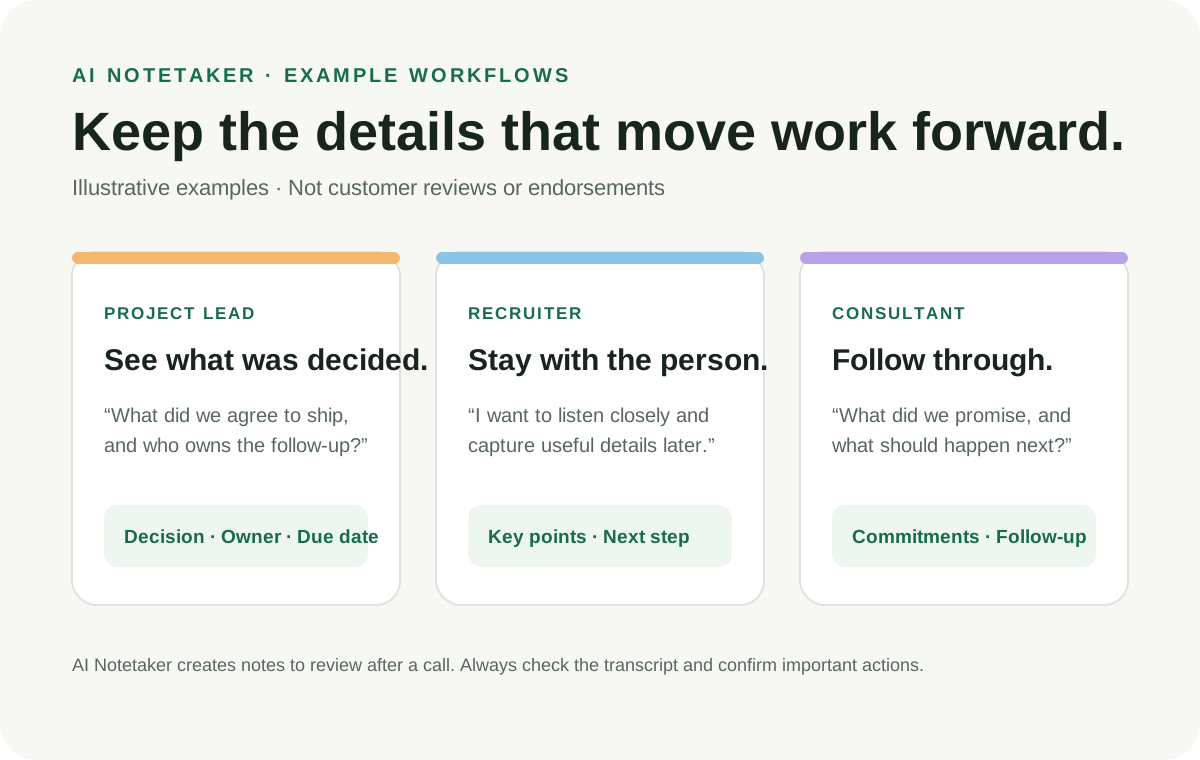
Download the SVG. Illustrative ideas for project leads, recruiters and consultants.
Questions about setup
Do I need an account?
Nothing about recording or notes needs an account. The desktop app records on your device and makes your notes with your own transcription and summary API keys, so the app is free and works with no AI Notetaker login. A free account lets you sign in and manage your devices and data. A subscription adds cloud sync of finished notes across your devices and, with Team, shared workspaces. Your provider keys and raw audio never leave your device.
Will I lose my notes if I clear my browser history?
Desktop recordings and notes are stored in the app's private data folder, not browser storage. Browser extension recordings stay in Chrome until exported and imported into the desktop app. With a subscription and sync turned on, finished desktop note text also appears in your web workspace.
Can I record browser meetings in Google Meet, Zoom, Teams, Slack or Discord?
Yes. In Chrome, use the floating control on supported meeting sites, the toolbar popup, or the recording shortcut on the tab where the call audio is playing. Chrome may require a toolbar click or shortcut before the floating control can start capture. This works for web versions of Google Meet, Zoom, Microsoft Teams, Slack, Discord, and other meeting sites; exact behavior depends on the browser and site. For a meeting in a desktop app or another browser, use AI Notetaker for macOS, Windows, or Linux to capture system audio and your microphone. Cross-platform app and device checks are still in progress.
When should I use the extension or desktop app?
Use the desktop app: it records browser meetings in any browser and meetings in desktop apps, with no extension needed. The optional Chrome extension can also save a meeting tab's audio; export the archive and import it in the desktop app to transcribe and create notes. The desktop app stores and processes its recordings locally, and can optionally sync finished notes to a web-app workspace.
Where can I read my notes?
With a subscription, finished desktop notes sync to the cloud and appear in your selected workspace, and workspace notes are copied into the desktop library for local viewing. Web edits refresh workspace copies on the next sync; desktop-origin notes are protected from automatic overwrites. Deletions and settings do not sync back. Browser extension recordings remain in Chrome until you export and import them into the desktop app, so the extension does not yet share the live library.